Backups
In the Backups section, you can manage backups of your server data and database.
Types of backups
Backups are divided into two types:
- Database backups
- Server file backups
Viewing backups
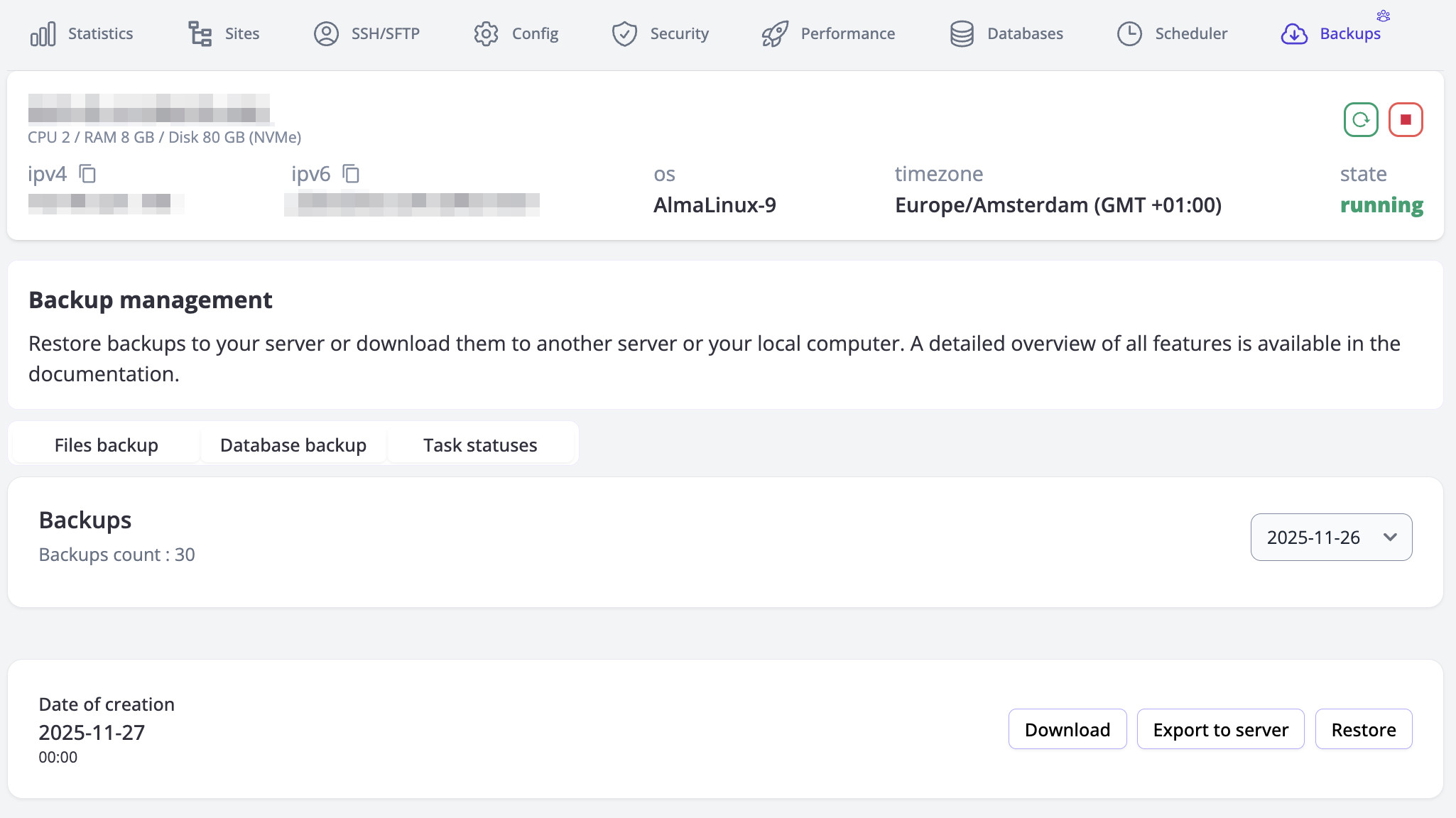
- The interface displays the number of available backups.
- Backups are shown by date — you will only see backups created on the selected day.
- The backup creation time is displayed according to the server’s time zone from which you are viewing the information.
Available actions for backups
Three actions are available for each backup:
- Download the backup to your device
- Export the backup to your server
- Restore data from the backup on the server
These actions work the same way for both file backups and database backups.
Downloading backups
- Click the "Download" button.
- A confirmation window will open with information that:
- a download link will be generated
- link generation may take some time
- After generation:
- the link will open automatically
- the file download will start using the standard system dialog
- The download link will be available for 7 days.
- During this period, you can download the backup again without waiting for the link to be generated
- The "Download" button will become a direct link to the archive.
- After 7 days, the link is automatically removed.
Exporting backups to the server
To upload a backup to your server:
- Click the "Export to server" button.
- Make sure there is enough free disk space on the server.
- If there is not enough space, the backup will be uploaded incompletely.
- In this case, you need to:
- remove the remains of the failed upload
- free up disk space
- repeat the export
- After confirming the operation:
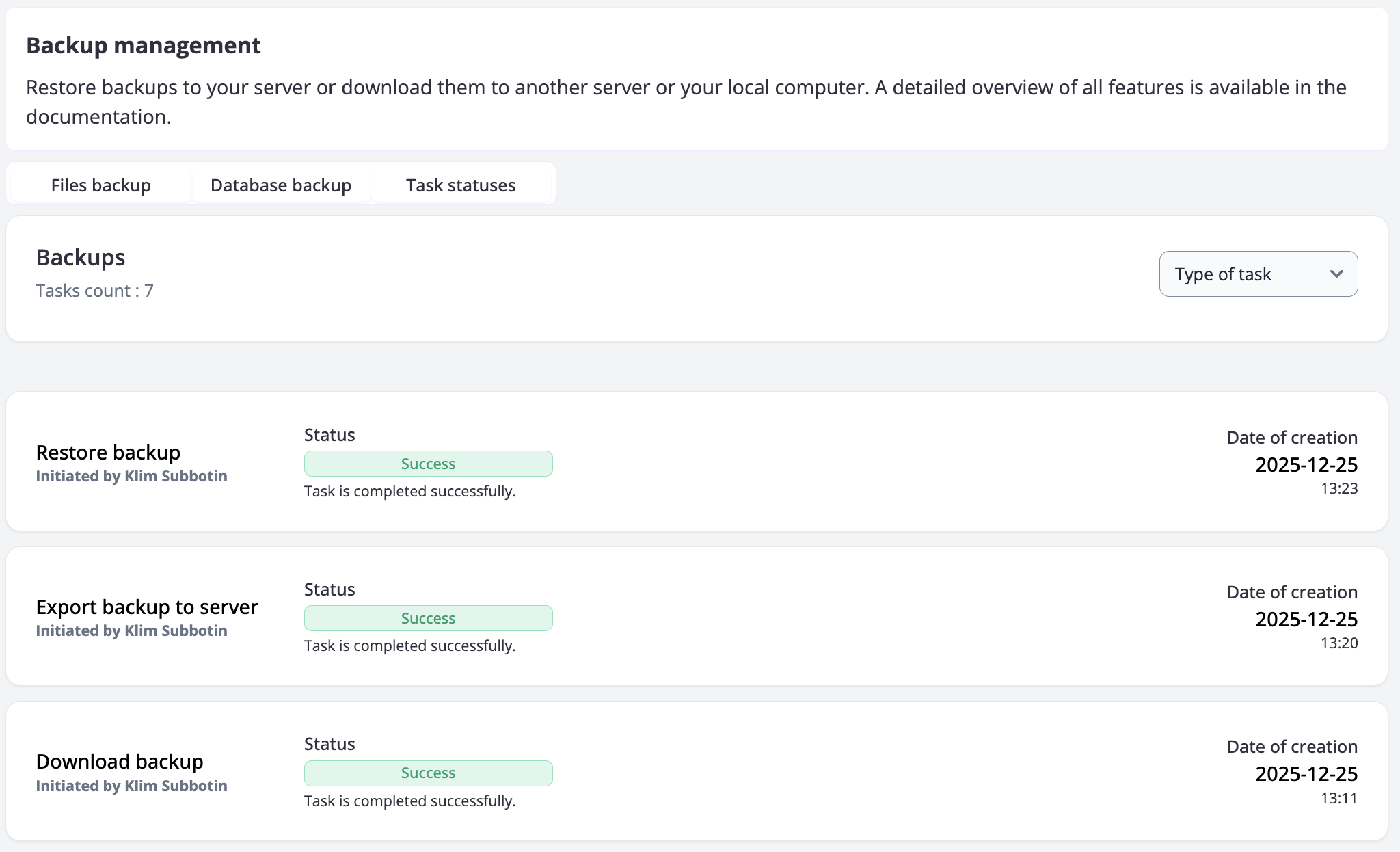
- you will be redirected to the Task statuses tab
- there you can track the execution status
- you will also see a notification about the successful start of the task
Restoring backups
To restore data from a backup:
- Select the required backup and click the "Restore" button.
- A confirmation window will open with important information:
- data created after the backup will be deleted
- data modified after the backup will be reverted to the state at the time the backup was created
- data deleted after the backup will be restored
- all other data will remain unchanged
- After confirmation:
- the Task statuses tab will open
- there you can monitor the restore progress.
If you are not sure which backup to choose or which action to perform, we recommend first downloading the backup so that you always have an additional copy of your data.